

How to Set Up Your Email Account in Outlook
Thanks to modern features like auto-configuration, setting up your FavoHost email account in Microsoft Outlook is very simple. In most cases, you only need to enter your email address and password, and Outlook will find the correct server settings automatically.
This guide will walk you through the process.
Step-by-Step Guide
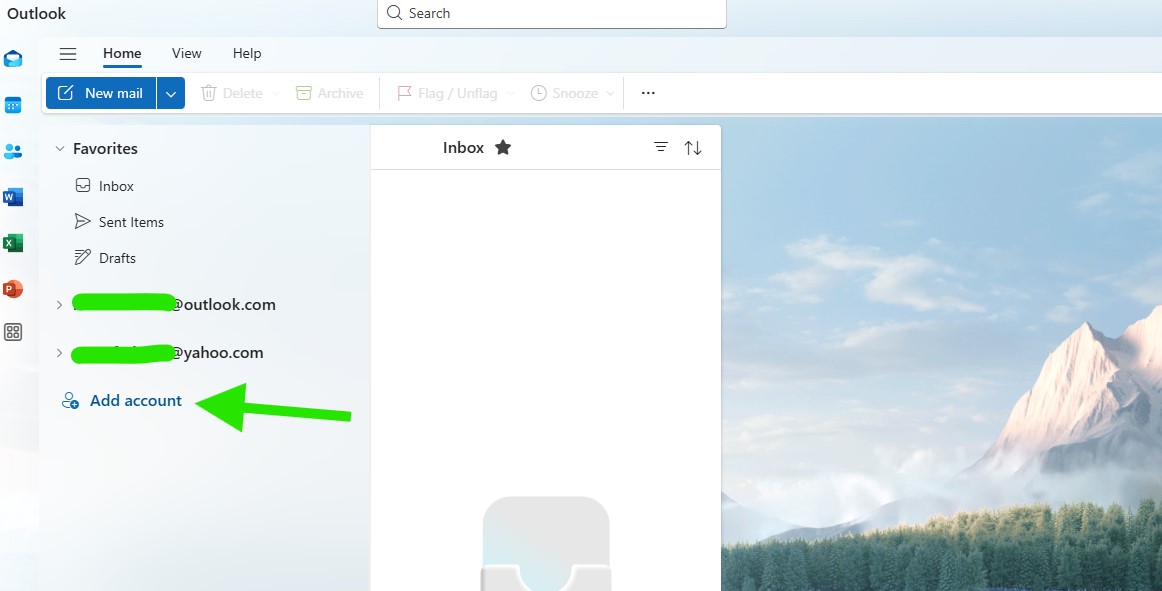
1. Open the Outlook application on your computer and click Add Account.
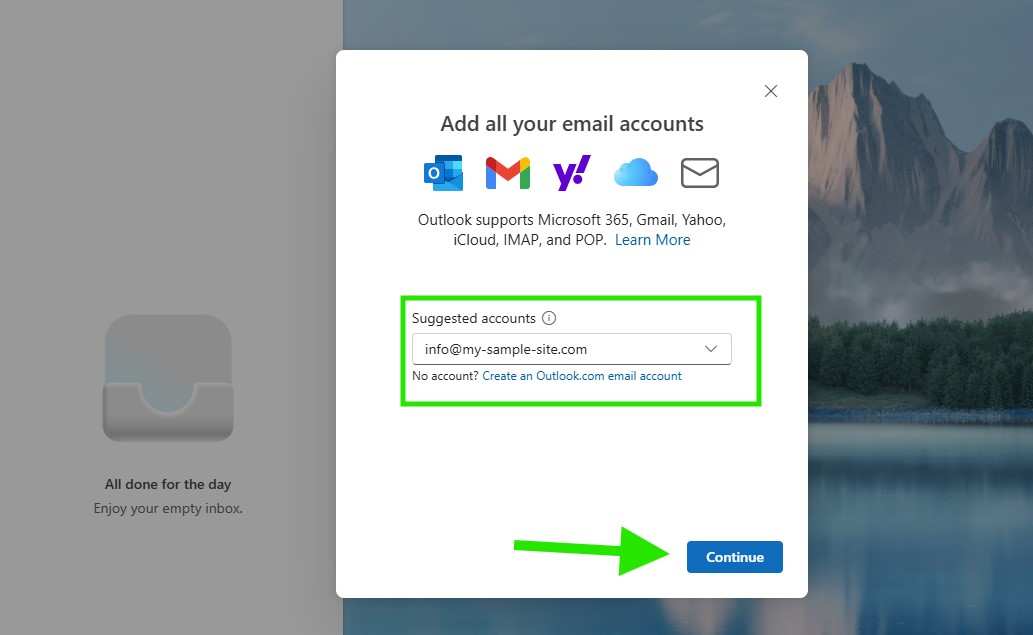
2. Enter your full email address (for example, [email protected]) in the text box and click the Continue button.
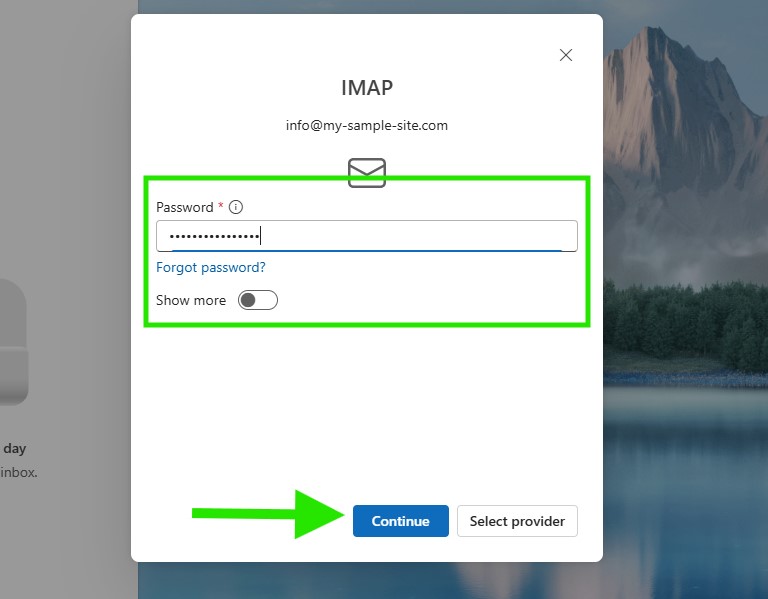
3. Outlook will now ask for your password. Enter the password for your email account and click Continue.
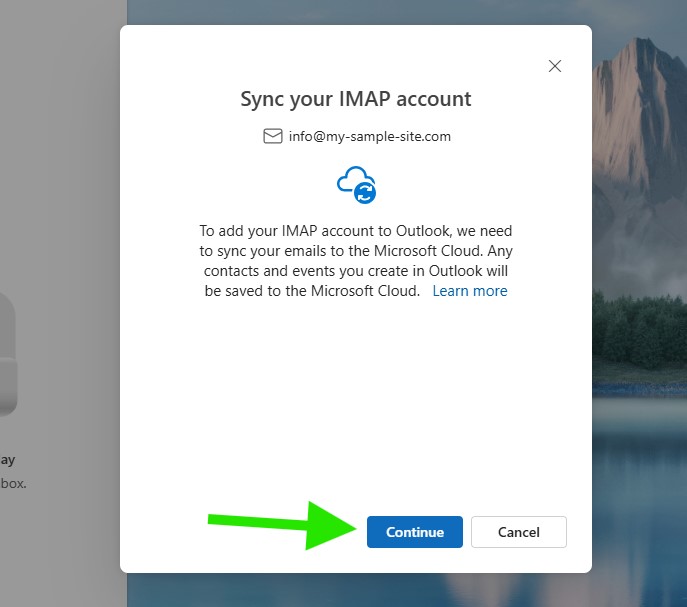
4. You may see a screen asking you to confirm the IMAP connection. Click Continue to proceed.
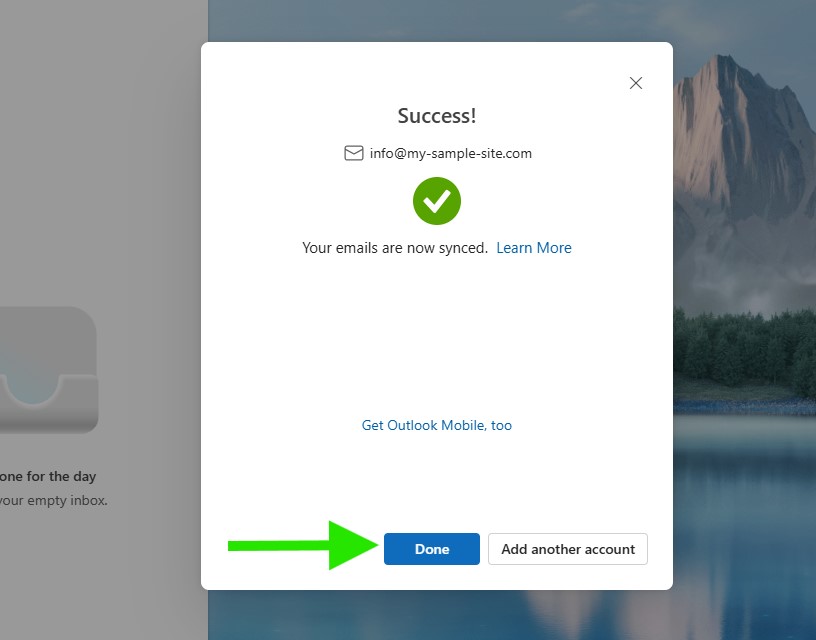
5. You should now see a message saying the account was added successfully. Click Done to finish the setup process.
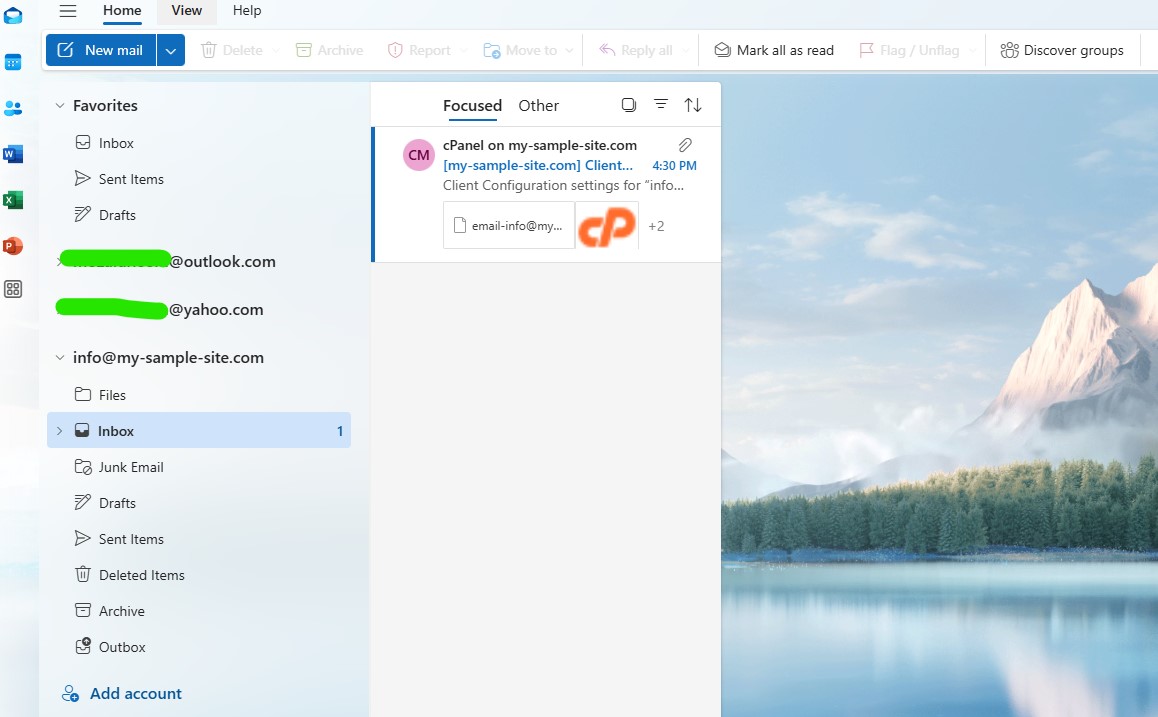
6. Your new email account will now appear in the left-hand panel of Outlook. You can now check your inbox, send new emails, and manage your account.
Note for Mobile Devices (iOS & Android)
The process for adding your email account to the Outlook app on mobile devices (like iPhone, iPad, and Android) is very similar. Look for the "Add Account" option in the app's settings and follow the same steps by entering your full email address and password.